Specialist Notes: |
Instructions to clear Cache. Updated instructions based on changes in Google Chrome Version 144 on Mac.
| Canned Response Code: /Chrome03 |
| Standard Response: |
To clear Cache in Google Chrome, kindly follow the instructions below:
1. In the top-right corner of the browser window, click the 'Customize and control Google Chrome' button -- 3 vertical dots ( ⋮ ).
2. Select 'History' and select 'History' again from the list of options. 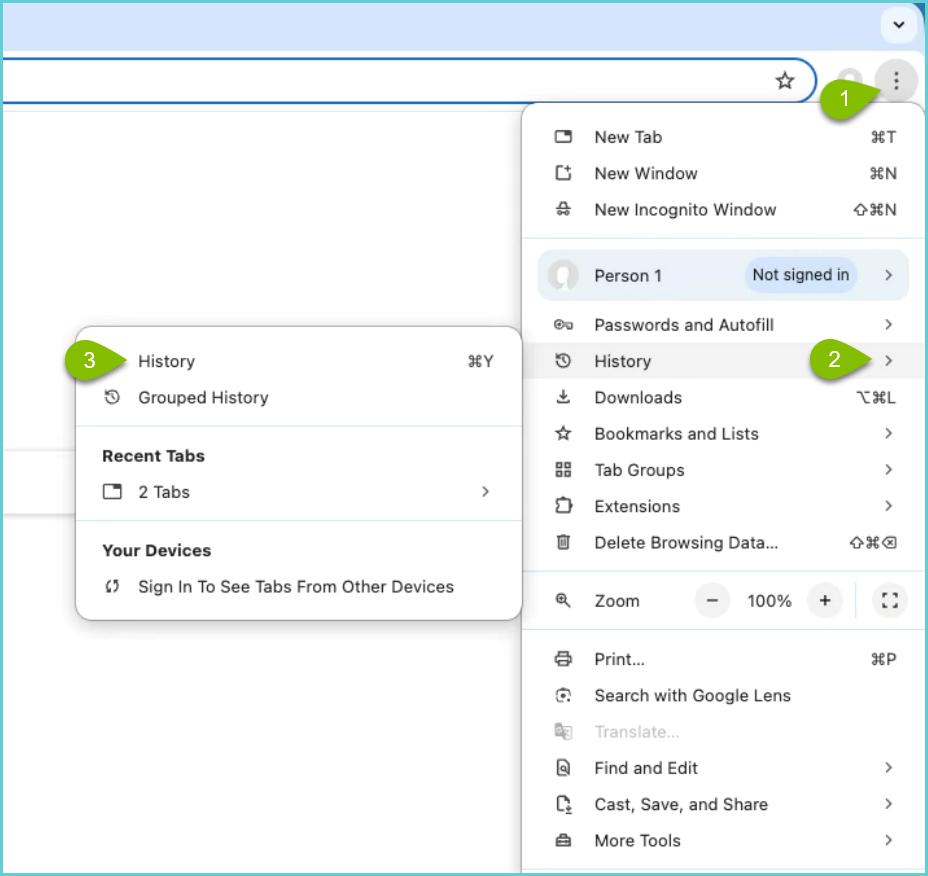
3. Click "Delete browsing data".
4. In the dialog that appears, select the following checkbox ( ☐ ):
- Cached images and files
5. Use the menu at the top to select the amount of data that you want to delete. Select 'All time' to delete everything.
6. Click the 'Clear data' or 'Delete data' button.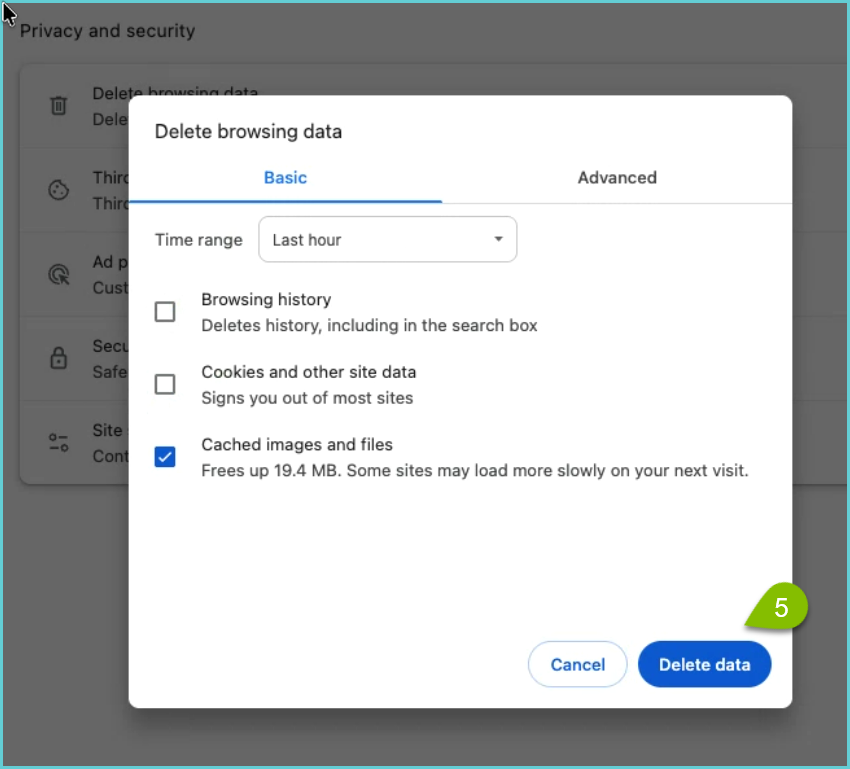
7. Refresh Google Chrome.
Let me know if this resolves your issue. I am standing by.
