| Specialist Notes: |
Instructions to clear Cache. Updated instructions based on changes in Microsoft Edge Version 144.
| Canned Response Code: /Edge02 |
| Standard Response: |
To clear Cache in Microsoft Edge, kindly follow the instructions below:
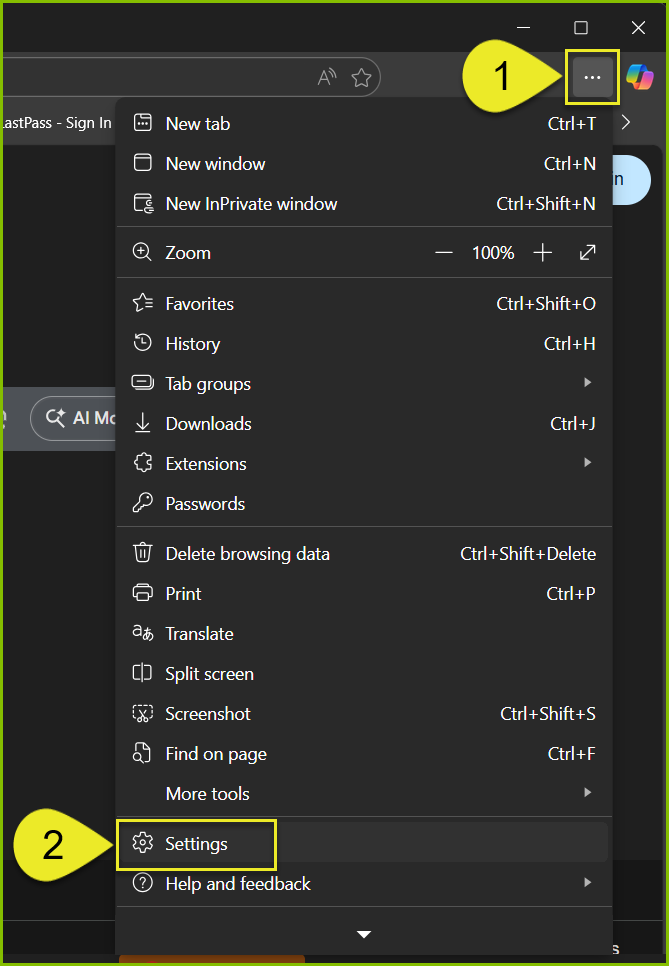
1. In the top-right corner of the browser window, click the ellipsis menu (•••).
2. Select "Settings" from the menu.
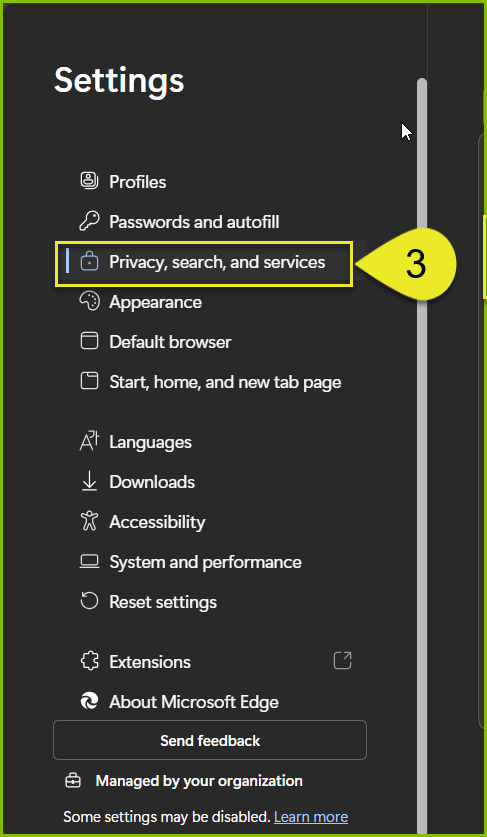
3. A new tab will open (titled "Settings") from which you will select "Privacy, search, and services".
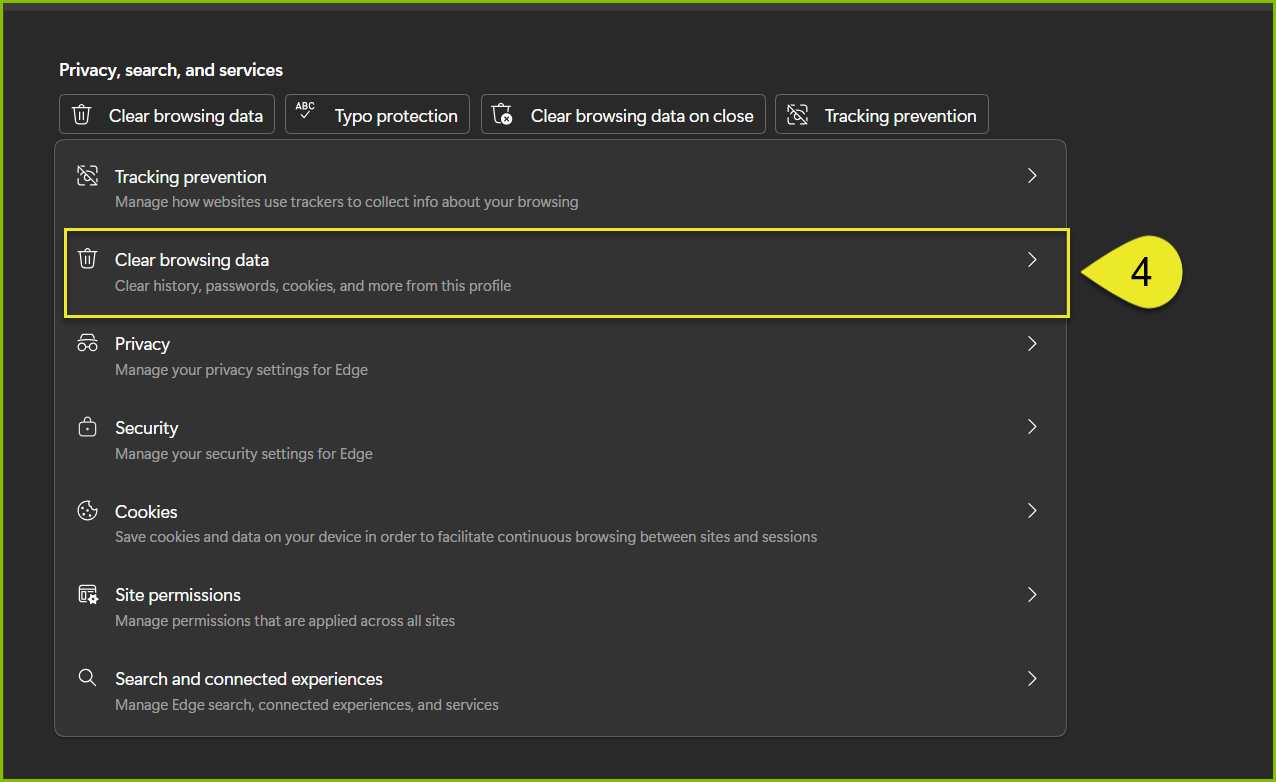
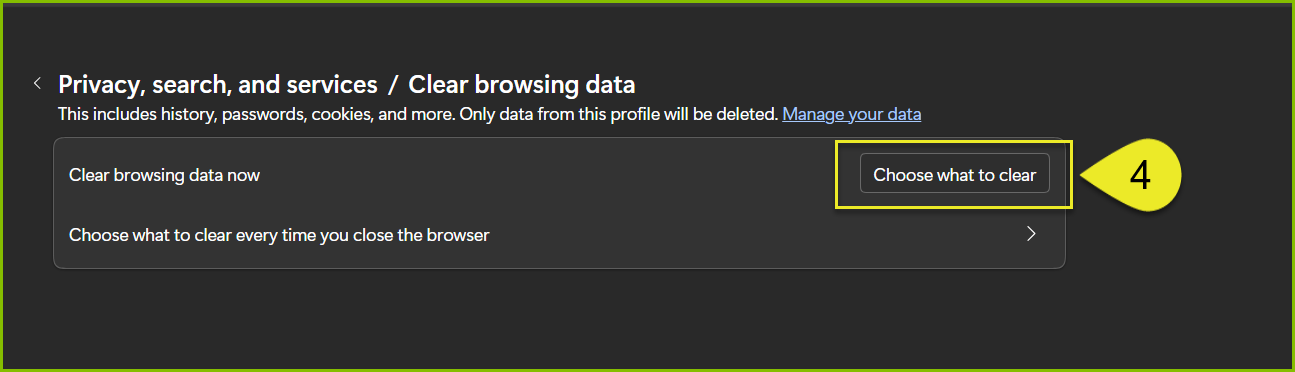
4. From the "Privacy, search, and services", click "Clear browsing data" and click "Choose what to clear".
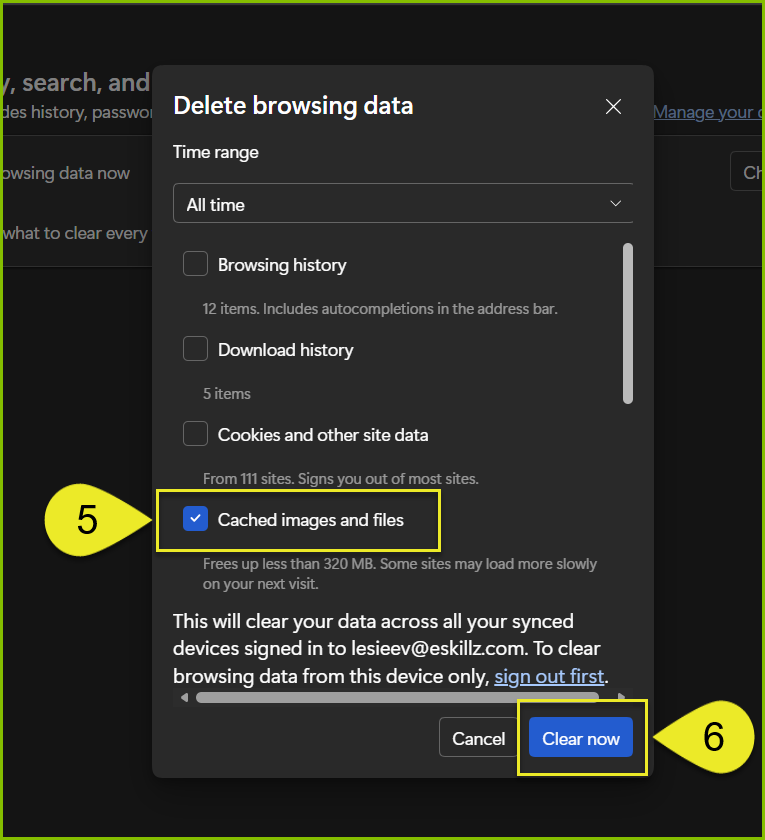
5. A small window will appear. From this window, select "All Time" for Time Range and select "Cached images and files" only.
6. Click "Clear now" to clear your cache.
7. Refresh your [Client + LMS Name] Home Page.
Once you’ve completed these steps, please let me know if your issue has been resolved.
