| Specialist Notes: |
Instructions to allow popups. Updated instructions based on changes in Mozilla Firefox Version 147.
| Standard Response: |
To allow the Pop-up Blocker in Mozilla Firefox, please follow the instructions below:
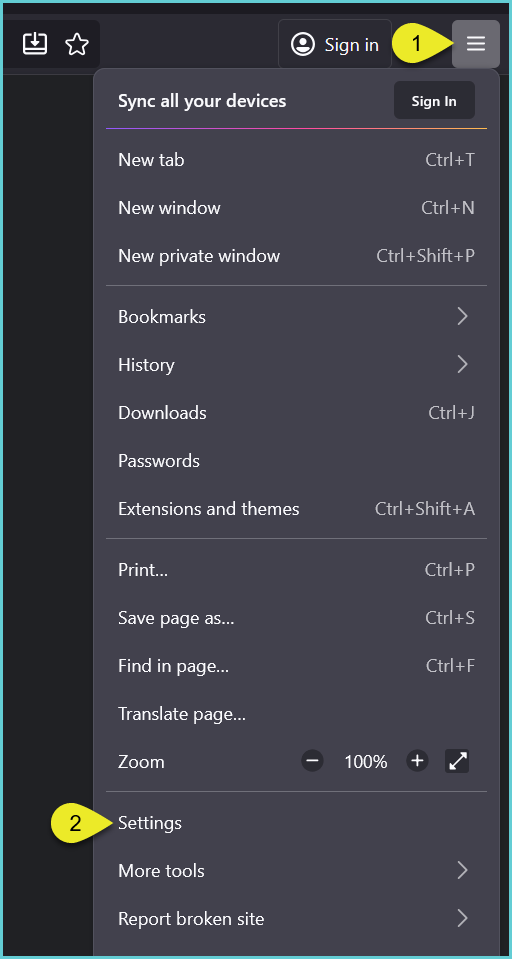
1. From Mozilla Firefox, open the Application Menu ☰ and select 'Settings.'
2. Select 'Privacy & Security' panel.
3. Scroll to 'Permissions' section and uncheck the 'Block pop-up windows' box.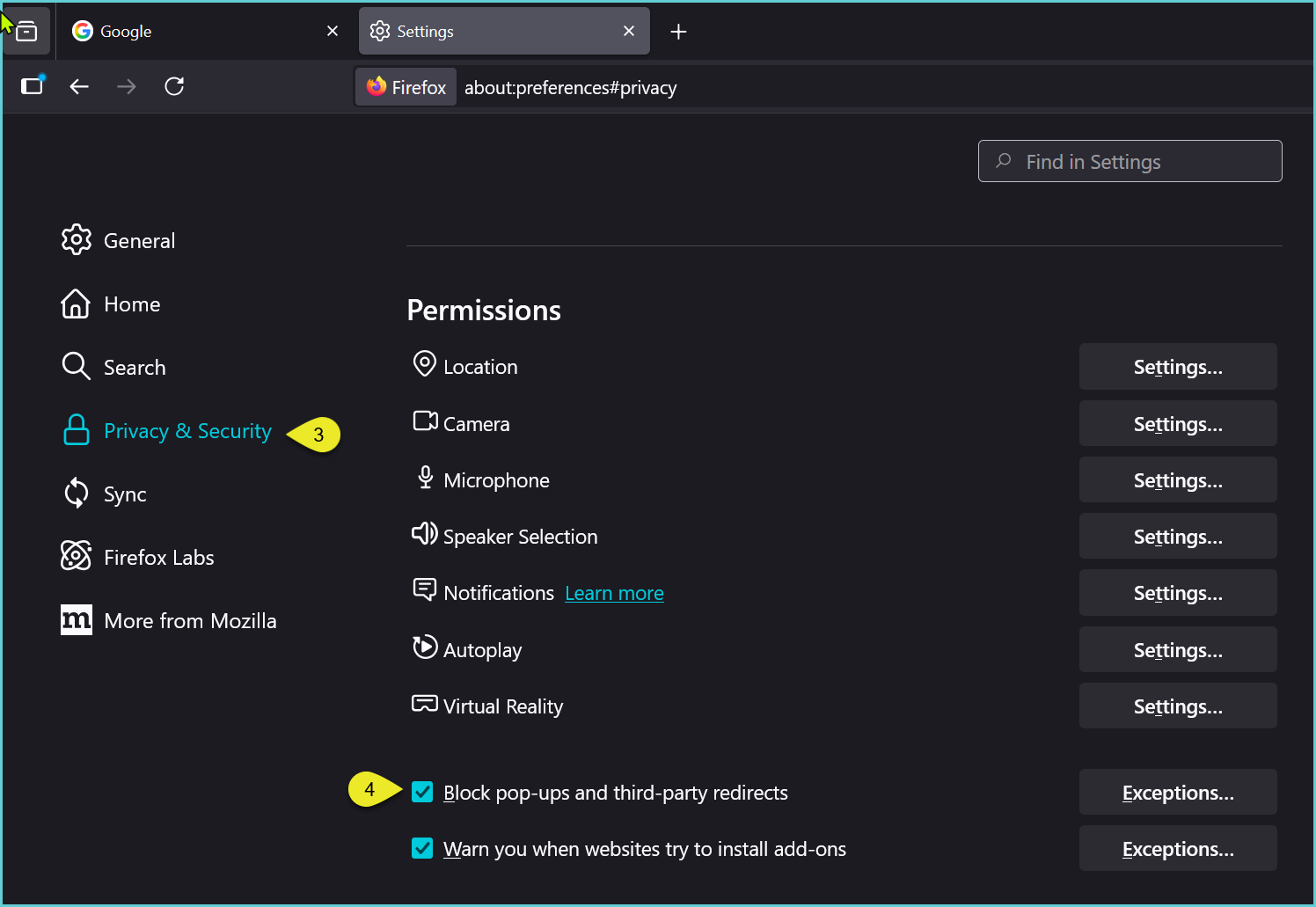
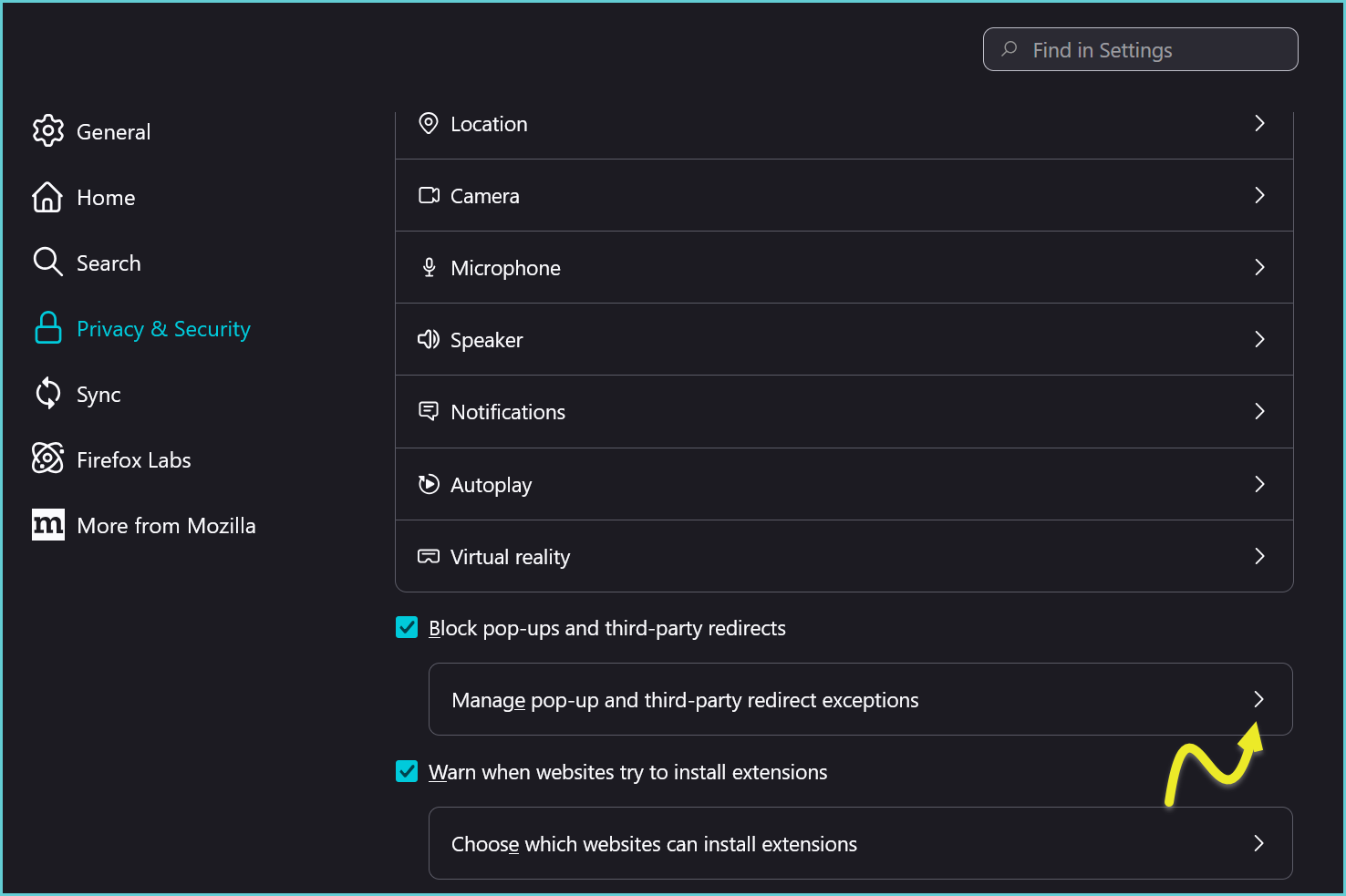
4. Or, you can add the learning site as an exception to allow all pop-ups. To do so:
a. Click 'Manage pop-up and third-party redirects exceptions.'
b. Enter the URL of your Learning Center Home Page, click on 'Allow' and click on 'Save Changes.'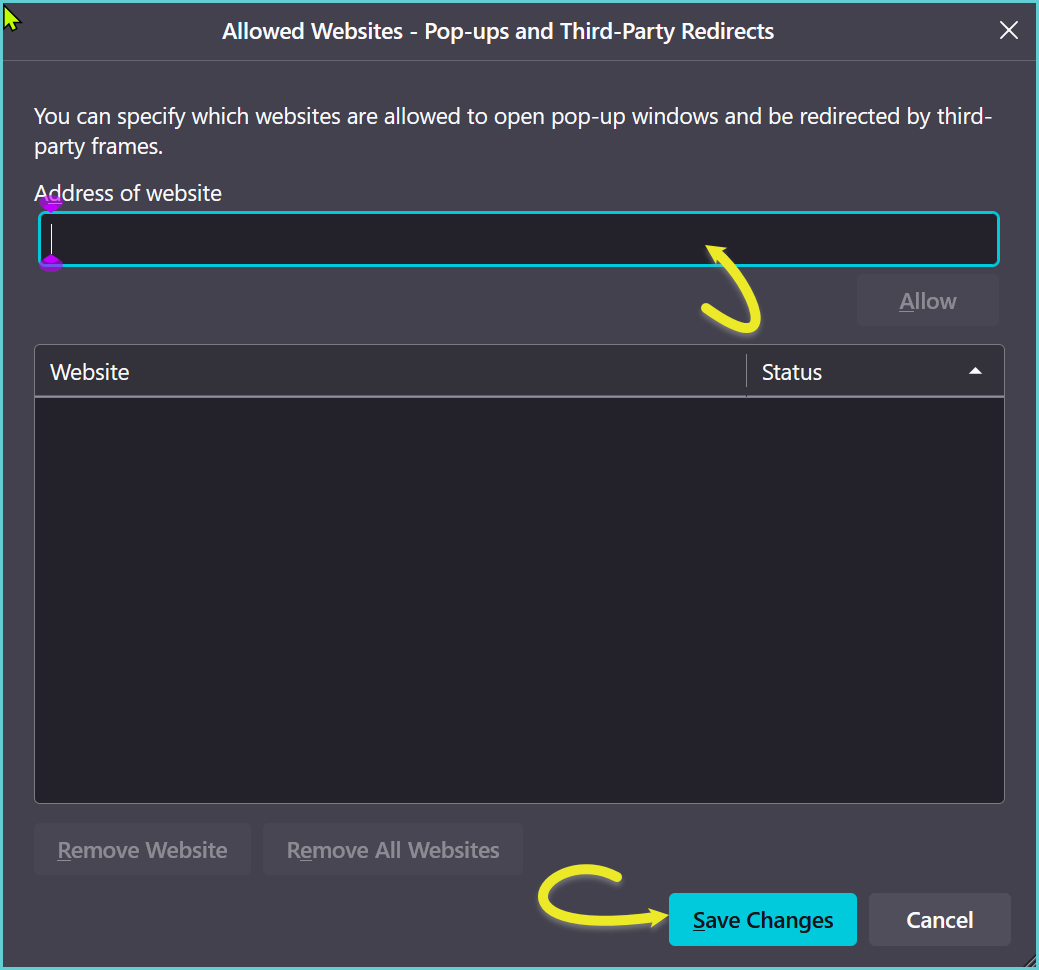
5. Close the settings tab.
