| Specialist Notes: |
Instructions to clear Cache in Google Chrome. Updated instructions based on changes in Google Chrome Version 144.
| Canned Response Code: /Chrome02 |
| Standard Response: |
To clear Cache in Google Chrome, kindly follow the instructions below:
1. In the top-right corner of the browser window, click on the ‘Customize and control Google Chrome’ button -- 3 vertical dots ( ⋮ ).
2. Select ‘Delete browsing data…’ from the drop-down.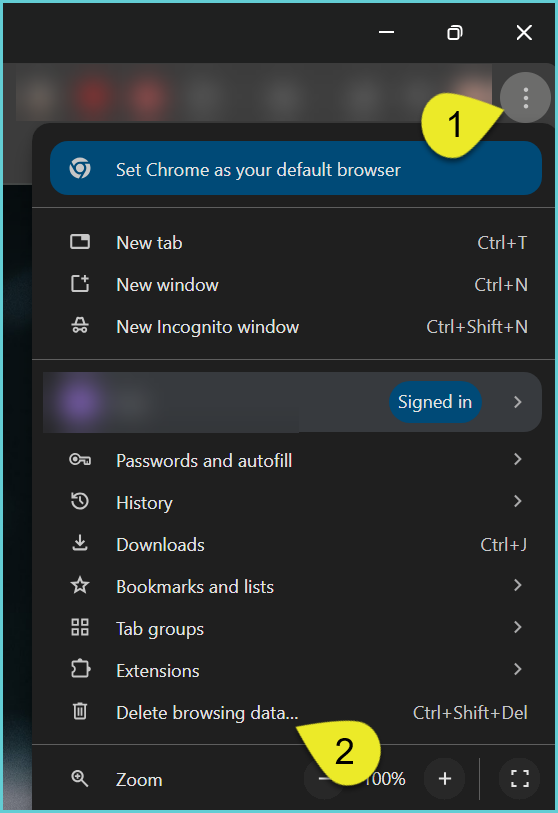
3. In the dialog that appears, make the following changes:
- Set Time Range to ‘All Time’.
- Select the checkbox for ‘Cached images and files’.
4. Click ‘Delete data’.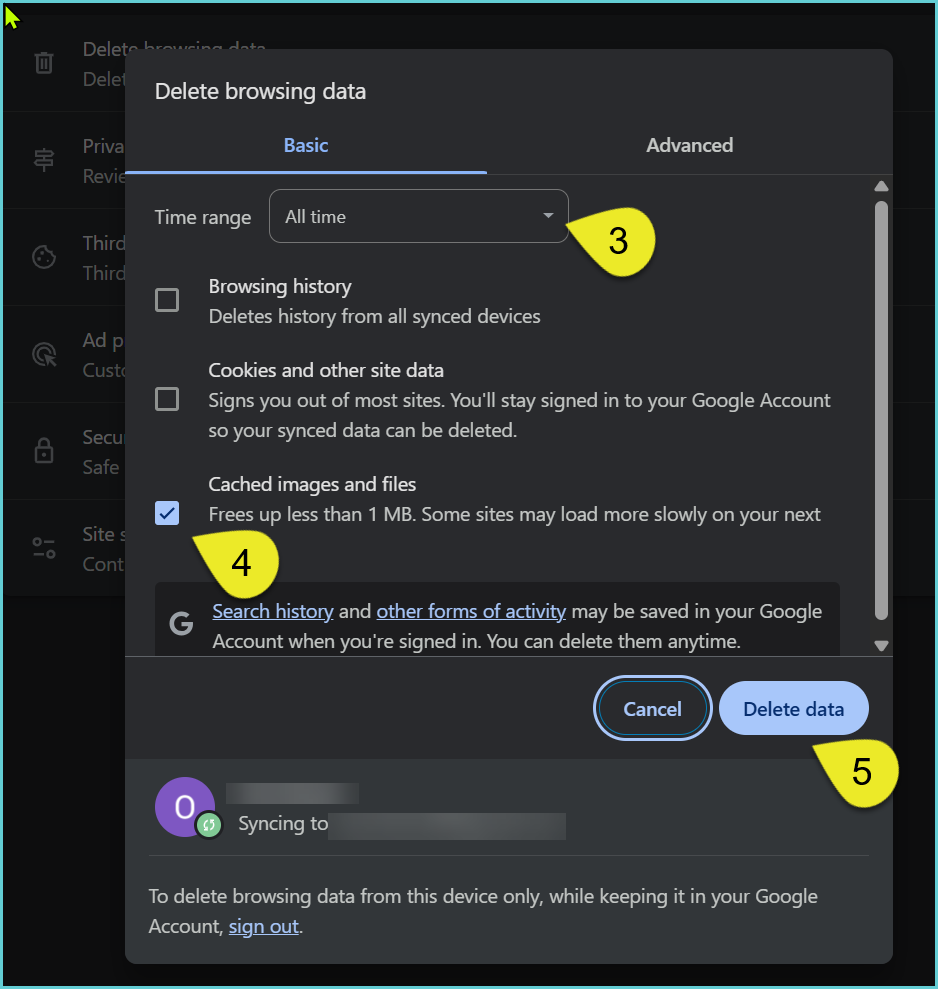
5. Refresh your [Client + LMS Name] page.
Let me know if this resolves your issue. I am standing by.
